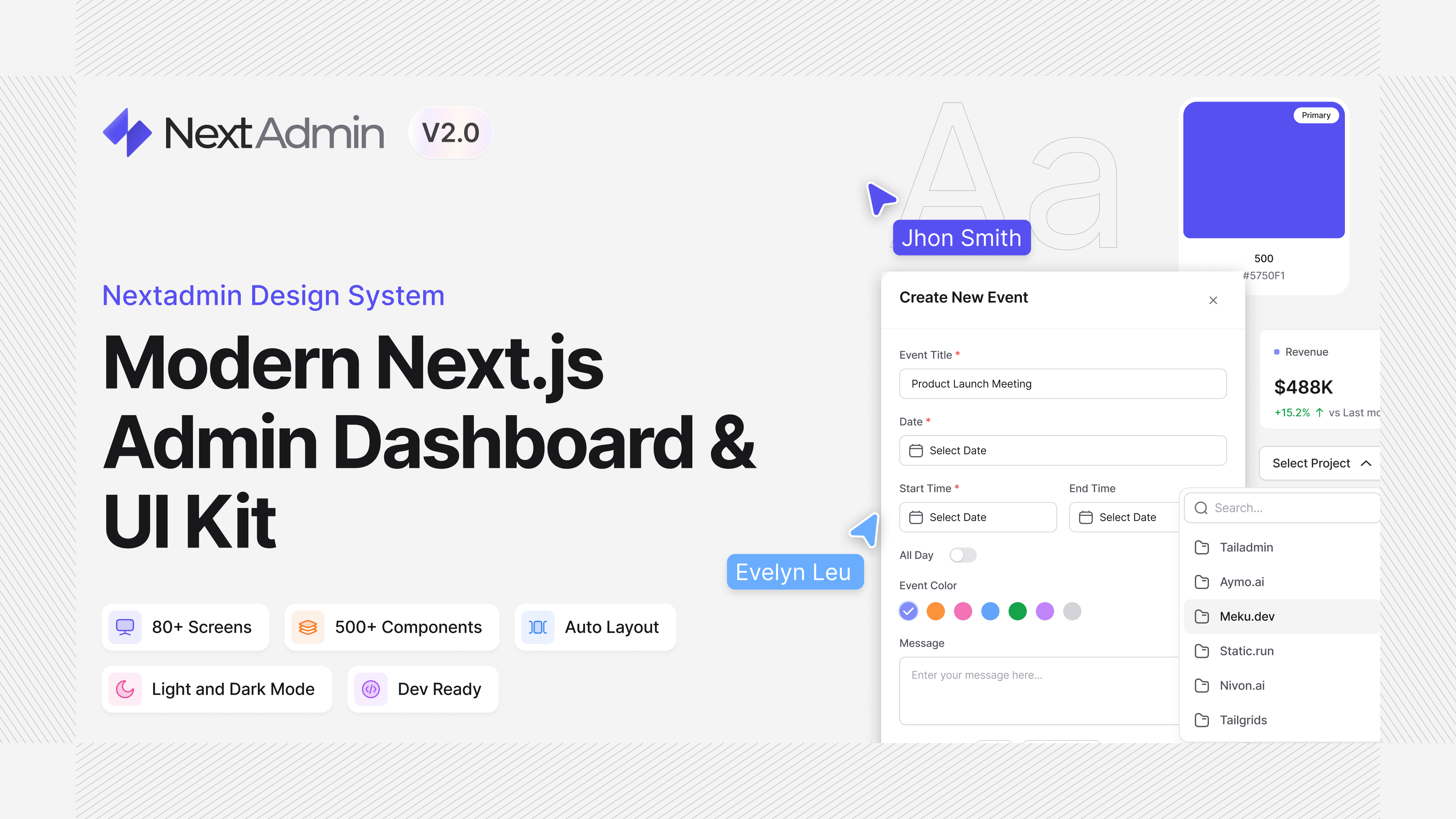
NextAdmin is built with Tailwind CSS and Tailgrids component primitives, making it highly customizable.
Style Customization
Any styles of the template can be customized by updating the root global.css file or updating the css variable tokens in src/app/css.
Refer to Tailwind CSS Custom Styles for more details.
The styles and behavior of component primitives can also be updated by directly changing the component files under src/components/.
How to add a new feature
A typical "add a feature" flow:
Create the API service
Create the API service under src/services/api/<page-name>/ with index.ts, types.ts, data.ts (optional). Then create the service function:
// services/api/<page-name>/index.ts
import type { DataShape } from "./types";

export async function getData(): Promise<DataShape> {
  const { data } = await axios.get("/api/dummy");
  return data;
}
Create the UI
Create the feature page under src/app/(with-layouts)/<feature>/ or src/app/(without-layouts)/<feature>/ with page.tsx + optional loading.tsx. Then consume the service function using react query.
// src/app/(with-layouts)/<feature>/page.tsx

"use client";

import { useQuery } from "@tanstack/react-query";
import { getData } from "@/services/api/<page-name>";

export default function Page() {
  const { data: tableData } = useQuery({
    queryKey: ["page-feature"],
    queryFn: getData,
  });

  // ...
}
Add to Sidebar
Add to sidebar by updating src/components/common/sidebar/data.tsx.
// src/components/common/sidebar/data.tsx

{
  title: "Page Feature",
  url: "/page-feature",
  icon: <IconFeature className="size-5" />, // optional
  items: [], // optional, for nested menu
}
Create New Page prompt can be used to create new feature.